
How to Create a QR Code for a Website or Landing Page
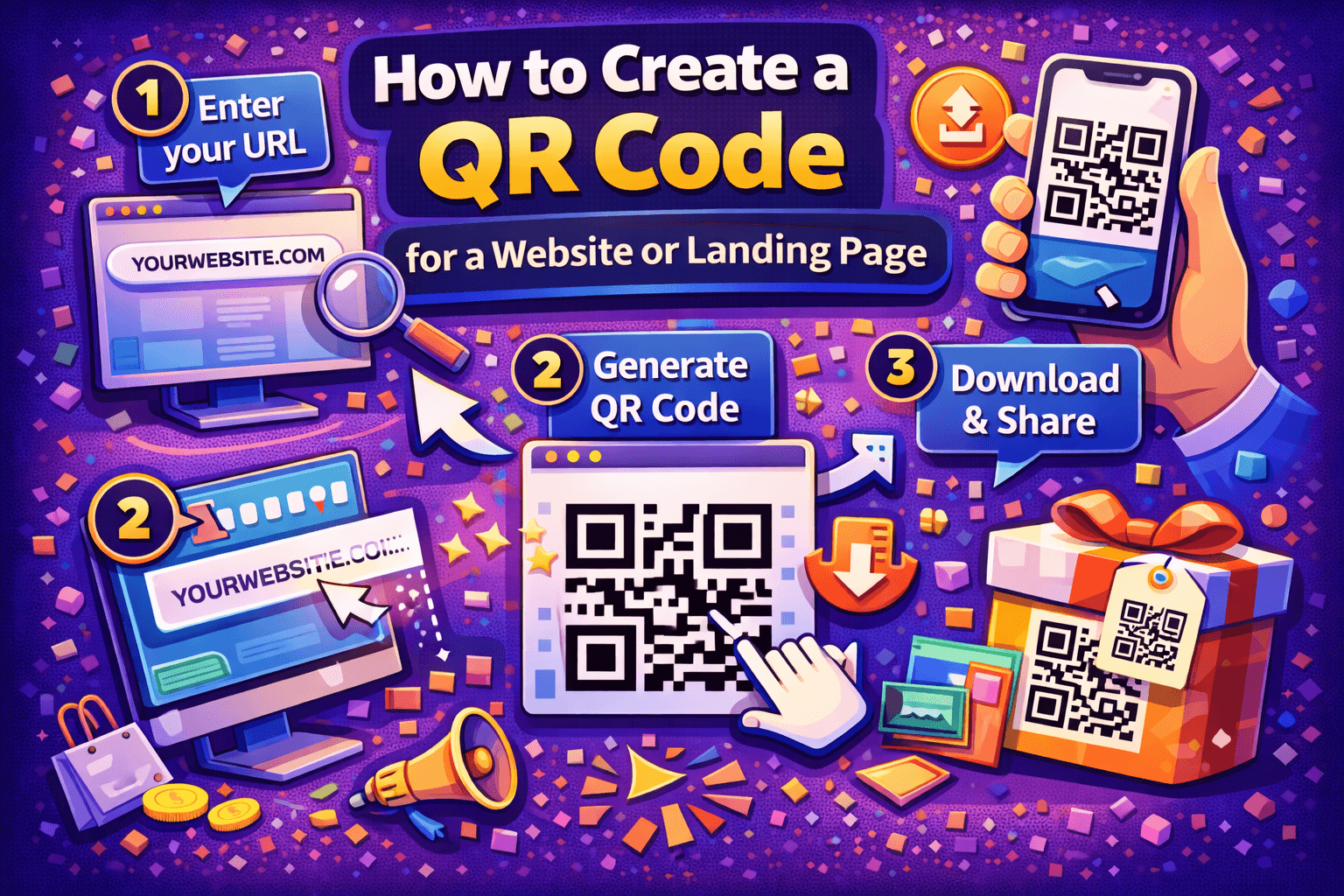
QR codes make it easy to send people from the physical world to a digital destination in seconds. Whether you’re promoting a website, product page, signup form, or landing page, a QR code removes friction and increases the chance someone actually visits your link.
Here’s how to create a QR code for a website or landing page the right way — so it works everywhere and doesn’t break later.
Step 1: Choose the Exact URL You Want to Share
Before generating anything, decide where the QR code should lead.
Common options include:
-
A homepage
-
A campaign landing page
-
A signup or contact form
-
A product or offer page
-
A shortened tracking URL
Make sure:
-
The page loads fast on mobile
-
The URL is correct and live
-
The page makes sense when opened without extra context
A QR code only works as well as the page behind it.
Step 2: Decide Between Static and Dynamic QR Codes
This step is often skipped — and it’s where many people make mistakes.
Static QR codes
-
The URL is permanently embedded
-
Cannot be changed after creation
-
Best for permanent links
Dynamic QR codes
-
The destination can be edited later
-
Often allow scan tracking
-
Better for campaigns, print materials, or long-term use
If there’s any chance the link might change, a dynamic QR code is usually the safer option.
Step 3: Generate the QR Code
Once you have your URL and QR type decided, you can generate the code using an online QR code generator like QRColor.com, which allows you to create website QR codes that can be customized and managed easily.
Paste your URL into the generator, select the appropriate QR type, and generate the code. This process takes only a few seconds.
Step 4: Customize the QR Code (Optional but Recommended)
Customizing a QR code can improve scan rates and brand recognition — as long as it’s done correctly.
Safe customizations include:
-
Changing colors with strong contrast
-
Adding a small logo in the center
-
Adjusting the shape slightly while keeping the core pattern intact
Avoid:
-
Low-contrast color combinations
-
Overly complex designs
-
Distorting the QR structure
Always test after customizing.
Step 5: Test the QR Code on Multiple Devices
Before publishing or printing, scan the QR code using:
-
Different phones
-
Different camera apps
-
Different lighting conditions
Check that:
-
The page loads quickly
-
The correct URL opens
-
The mobile experience is clean and readable
Testing takes minutes and prevents costly mistakes later.
Step 6: Place the QR Code Where It Makes Sense
A QR code should feel helpful, not random.
Good placement examples:
-
Flyers, posters, and brochures
-
Product packaging
-
Business cards
-
Store windows
-
Presentation slides
Always include a short call to action nearby, such as:
-
“Scan to learn more”
-
“Scan to visit the website”
-
“Scan for details”
People are far more likely to scan when they know what they’ll get.
Step 7: Monitor and Improve (If Using Dynamic QR Codes)
If your QR code supports tracking, use that data to:
-
Measure engagement
-
Compare placements
-
Improve landing pages
Even small tweaks to copy or page layout can significantly improve results once people arrive.
Final Thoughts
Creating a QR code for a website or landing page is simple — but doing it well requires a bit of planning. Choosing the right destination, using the correct QR type, testing thoroughly, and placing it thoughtfully can make the difference between a scan that converts and one that gets ignored.
When QR codes are done right, they become a natural bridge between offline attention and online action.

 English
 Arabic
 French
 Spanish
 Portuguese
 Deutsch
 Turkish
 Dutch
Dutch
 Russian
 Romaian
 Portuguese (Brazil)
 Greek
Greek